Monday, 8 March 2010

Enable Administrator in Welcome Screen

When you install Windows XP an Administrator Account is created (you are asked to supply an administrator password), but the "Welcome Screen" does not give you the option to log on as Administrator unless you boot up in Safe Mode.
First you must ensure that the Administrator Account is enabled:
1. Open Control Panel
2. Open Administrative Tools
3. Open Local Security Policy
4. Expand Local Policies
5. Click on Security
Options
6. Ensure that Accounts: Administrator account status is enabled.

Then follow the instructions from the "Win2000 Logon Screen Tweak" ie;
1.Open Control Panel
2. Open User Accounts
3. Click Change the way users log on or log off
4. Un-tick Use the Welcome Screen
5. Click Apply Options
You will now be able to log on to Windows XP as Administrator in Normal Mode.
Another Method
By default windows XP doesn't show the Administrator in the user list at the welcome screen. Here's a way to get around it.

Now head up to
HKEY_LOCAL_MACHINE\Software\Microsoft\WindowsNT\CurrentVersion\
Winlogon\SpecialAccounts\Userlist

create a new DWORD entry and name it as Administrator and change its value to 1.

exit and reboot for the changes to take effect.
To change it back change its value to 0 or simply delete the key.

MAKE YOUR MENUS LOAD FASTER

This is one of my favorite tweaks as it makes a huge difference to how fast your machine will 'feel'. What this tweak does is remove the slight delay between clicking on a menu and XP displaying the menu.
 
Go to Start then Run
Type 'Regedit' then click 'Ok'
Find "HKEY_CURRENT_USER\Control Panel\Desktop\"
Select "MenuShowDelay"
Right click and select "Modify'
Reduce the number to around "100"
This is the delay time before a menu is opened. You can set it to "0" but it can make windows really hard to use as menus will open if you just look at them - well move your mouse over them anyway. I tend to go for anywhere between 50-150 depending on my mood.

Disable Unnecessary Services in windows

Because Windows XP has to be all things to all people it has many services running that take up system resources that you will never need. Below is a list of services that can be disabled on most machines:

Alerter
Clipbook
Computer Browser
Distributed Link Tracking Client
Fast User Switching
Help and Support - (If you use Windows Help and Support leave this enabled)
Human Interface Access Devices
Indexing Service
IPSEC Services
Messenger
Net meeting Remote Desktop
Sharing (disabled for extra security)
Portable Media Serial Number
Remote Desktop Help Session Manager (disabled for extra security)
Remote Procedure Call Locator
Remote Registry (disabled for extra security)
Remote Registry Service
Secondary Logon
Routing &
Remote Access (disabled for extra security)
Server
SSDP Discovery Service - (Unplug n' Pray will disable this)
Telnet
TCP/IP Net BIOS Helper
Upload Manager
Universal Plug and Play Device Host
Windows Time
Wireless Zero Configuration (Do not disable if you use a wireless network)
Workstation
To disable these services:

Go to Start and then Run and type "services.msc"
Doubleclick on the service you want to change
Change the startup type to 'Disable

Trick to lock your private folder


this trick is the safest and locks files or folders without use of any software's.  
           Suppose you want to lock the folder movies in d: which has the path D:\movies.
In the same drive create a text file and type

ren movies movies.{21EC2020-3AEA-1069-A2DD-08002B30309D}

Now save this text file as loc.bat

Create another text file and type in it

ren movies.{21EC2020-3AEA-1069-A2DD-08002B30309D} movies

Now save this text file as key.bat
     Now you can see 2 batch files loc and key. Press loc and the folder movies will change to control panel and you cannot view its contents. Press key and you will get back your original folder.
try it out!!!!!!!
Note: It is safe as in case if you loose the key file, you can create it again but the folder name must be correct.

Simple Trick to Turn off all system beeps

    If you want to turn off all system beeps (like the ones that go through your computers
' internal speaker):

Start Regedit

Go to HKEY_CURRENT_USER\Control Panel\Sound

Edit the key Beep and give it a value of No

Delete or Remove Recycle bin Icon from Desktop

If you are the kind of person who always likes neatness specially desktop, then here is a small trick for you that will simply remove the Recycle bin icon from desktop.
 
Follow the steps below:
[Start] [Run] [Regedit]
Registry Key: HKEY_LOCAL_MACHINE\SOFTWARE\Microsoft\Windows\
CurrentVersion\Explorer\BitBucket

Modify/Create the Value Data Type(s) and Value Name(s) as detailed below.

Data Type: DWORD // Value Name: NukeOnDelete

Setting for Value Data: [0 = Use Recycle Bin / 1 = Permanently Delete]
Exit Registry and Reboot

  Another Method
start->run->gpedit.msc-> user configuration ->desktop->remove recycle bin from desktop->double click->change it not configured to enable->apply and ok.

now come to start->run->gpupdate.exe and press enter.

your recycle bin icon is gone from desktop nad you will need to revert your settings for get that back.

after reverting setting make sure to run gpupdate.exe command.

The Win2003 server commands

Driverquery

{System root}\system32
Displays a list of the installed drivers, types and dates.
driverquery [/s computer] [/u domain\user /p password]
[/fo {table | list | csv}] [/nh] [/v | /si]
No parameters: Provides a list of drivers with the credentials of
the logged in user.
[/s computer]: Get a list of the drivers installed on ‘computer’.
Do not use UNC notation - only the system name.
[/u domain\user /p password]: Use the user name specified
by /u domain\user and password specified by /p password to
run the command. Omitting this switch uses the credentials of
the currently logged in user.
[/fo {table | list | csv}]: Change the way that the output information
is displayed. Use table to show the results in tabular form, list
to show a list with one piece of information per line and csv to
display the results in a format that can be imported into Excel.
[/nh]: Specifies that column header should not display.
[/v]: Verbose
[/si]: Information about signed drivers.

Eventcreate

{System root}\system32
Creates a custom event in the event log.
eventcreate [/s computer [/u domain\user [/p password]]
{[/l {application | system}] | [/so source]} /t {error |
information | warning } /id eventID /d description
[/s computer]: The name or IP address of the system to which
the event should be recorded.
[/u domain\user /p password]: Use the user name specified
by /u domain\user and password specified by /p password to
run the command. Omitting this switch uses the credentials of
the currently logged in user. Used only with the /s parameter.
[/l {application | system}]: The event log to which the event
should be written.
[/so source]: The source to use for the event. Can be any
application or component.
/t {error | information | warning }: The type of event to create.
/id eventide: Any number between 1 and 1000. Used to
identify the event.
/d description: The description of the event.

Relog

{System root}\system32
Exports performance counter logs into other formats for easy
import into other programs.
relog [file [file ...]] [-a] [-c path [path ...]] [-cf file]
[-b date [time]] [-e date [time]] [-f {bin | csv | tsv | SQL}]
[-o {outputFile | DSN!CounterLog}] [-t value] [-config
{file | i}] [-q]
[file [file ...]]: A list of path names/files to performance
counter logs.
[-a]: Append information to the output file rather than overwrite it.
[-c path [path ...]]: A list of performance counter paths to log,
each enclosed in quotes and separated by spaces.
[-cf file]: A file containing the performance log counters that
should be included in the relog output. By default all counters
are included.
[-b date [time]]: The time of the first record to relog in
M/D/YYYY HH:MM:SS format.
[-e date [time]]: The time of the last record to relog in
M/D/YYYY HH:MM:SS format.
[-f {bin | csv | tsv | SQL}]: Specifies the format of the output
file. Csv is comma delimited, tsv is tab delimited and bin is
binary.
[-o {outputFile | DSN!CounterLog}]: The output file name to
which the relog data will be written. For SQL output, specify
a DSN.
[-t value]: Allows a smaller subset of records by taking a
sample of every x records where x is the value in -t.
[-config {file | i}]: A config file containing the command line
parameters to use.
[-q]: Displays performance counters and times of the log files
specified in the input file.

Runas

{System root}\system32
Allows a program to be run within the context of a different user.
runas [/env] [/netonly] [/profile | /noprofile] [/savedcreds]
[/smartcard] [/showtrustlevels] [/trustlevel]
/user:username program
[/env]: Uses the current network environment rather than the
user’s local environment.
[/netonly]: The information provided is for remote access only.
[/profile | /noprofile]: /profile will load the user’s profile and is
the default behavior. Specify /noprofile to avoid loading the
user’s profile.
[/savedcreds]: Use this switch if the user’s credentials have
been previously saved.
[/smartcard]: Use this switch if credentials will be supplied
from a smart card.
[/showtrustlevels]: Shows the available trustlevel options.
[/trustlevel]: The level of authorization for which the program
will run.
/user:username: The account under which the application
should run in domain\user format.
Program: The program to run.
Shutdown
{System root}\system32
Shuts down or restarts the local machine or a remote system.
shutdown [/i | /a | /l | /s | /r | /p | /h | /e] [/f] [/m \\computer]
[/t seconds] [/d [p:] major:minor [/c "comment"]]
[/i | /a | /l | /s | /r | /p | /h | /e]: The shutdown or restart method
- each described below.
[/i]: Must be the first parameter if used. Displays a shutdown
dialog box on the remote system.
[/a]: If within the shutdown timeout period, the shutdown is
canceled. Can only be used with the /m switch.
[/l]: Logs the currently logged in user off the system with no
warning. This switch cannot be used with /m or /t.
[/s]: Shuts down the specified system or the local system if
none is specified.
[/r]: Restarts the specified system.
[/p]: Local system only: Immediately shuts down the system
with no warning.
[/h]: Places the specified system into hibernation.
[/e]: Allows documentation for the reason for the shutdown.
[/f]: Closes running applications without warning.
[/m \\computer]: The computer to be shut down. When
omitted, the local system is assumed.
[/t seconds]: The number of seconds to wait before shutting
down. The default is 30 seconds, but can range from 0 to 600
seconds.
[/d [p:] major:minor [/c "comment"]]: Provides a reason for
the shutdown. p: indicates that the shutdown is planned.
Major is the major reason — a number from 0 to 255 and
minor is the minor reason, a number from 0 to 65535.

Systeminfo

{System root}\system32
Provides detailed information about the system specified
including OS, security information, RAM, disk properties, etc.
systeminfo [/fo {table | list | csv}] [/nh] [/s computer
[/u domain\user [/p password]]]
[/fo {table | list | csv}]: Change the way that the output
information is displayed. Use table to show the results in
tabular form, list to show a list with one piece of information
per line and csv to display the results in a format that can be
imported into Excel.
[/nh]: For table and csv output suppress column headers.
[/s computer [/u domain\user [/p password]]]: /s specifies
the name or address of a remote computer for which to get
information while /u and /p specify a username and password
combination to use to log on to the system.

Taskkill

{System root}\system32
Kills a task or process.
taskkill [/s computer] [/u domain\user [/p password]]
{/fi filter [{/pid process | /im image}] | /pid process |
/im image} [/f] [/t]
[/s computer]: The name of the computer which has the task
that needs to be killed.
[/u domain\user [/p password]]: Use the credentials specified
to run the command. When omitted, runs as the logged in user.
{/fi filter}: The type of processes to include in the command.
[{/pid process | /im image}]: /pid is the process ID of the
process to kill while /im indicates the name of the process to
kill. Use * to specify all image names.
[/f]: Forcefully terminate the process.
[/t]: Kill child processes of the killed process.

Tasklist

{System root}\system32
Displays the tasks running on the specified machine.
tasklist [/s computer] [/u domain\user [/p password]]
[{/m module | /svc | /v}] [/fo {table | list | csv}] [/nh]
[/fi filter [/fi filter2 [ ... ]]]
[/s computer]: The name of the computer which has the task
that needs to be killed.
[/u domain\user [/p password]]: Use the credentials specified
to run the command.When omitted, runs as the logged in user.
[/m module]: Displays tasks with DLL modules matching the
pattern provided.
[/svc]: Displays service information for each process.
[/v]: Verbose. Display full details of the adapter and transport.
[/fo {table | list | csv}]: Change the way that the output
information is displayed. Use table to show the results in
tabular form, list to show a list with one piece of information
per line and csv to display the results in a format that can be
imported into Excel.
[/nh]: When using table or CSV output, disables headers from
being displayed.
[/fi filter [/fi filter2 [ ... ]]]: The types of processes to include in
the command.
FILE SYSTEM

Cipher
{System root}\system32
Show or modify the state of encryption on files and folders.
cipher
No parameters: Shows the encryption status of every file in the
current directory.
cipher [/d | /e] [/s:directory] [/a] [/i] [/f] [/q] [/h]
[pathname [...]]
/d: Decrypts the specified folder.
/e: Encrypts the specified folder marking it such that all files
added to the folder are also encrypted.
/s:directory: Recurses the /d or /e operation into all subfolders
of the specified directory.
/a: Performs the operation on both files and folders.
/f: Forces the operation on all objects.
/h: Displays files with attributes of system or hidden. These
files are not encrypted.
/I: Continues the operation even if errors are encountered.
/q: Reports only critical information during the operation.
cipher /k
/k: Creates a new encryption key for the current user. All other
options are ignored.
cipher /r:path+filename
/r:path+filename: Generates a new recovery agent certificate
and stores it in the path+filename specified.
cipher /u /n
Updates the encryption key for the user or recovery agent to
the current ones for all encrypted files and folders on the drive
and prevents the key from being updated. /u and /n need to be
used together.
cipher /w:path
/w:path: Removes data on unused portion of the volume
specified by the path.
cipher /x[:encrypted file] [filename]
Identifies certificates and keys for the currently logged in user
and backs them up to the location specified by filename. If the
encrypted file is included, the certificate used to encrypt it will
also be backed up.
Compact
{System root}\system32
Manages the compression of files and folders on an NTFS
volume.
compact
No parameters: displays the compression parameters for the
current folder.
compact [/c | /u] [/a] [/f] [/i] [/q] [/s[:directory]] [targetname[...]]
/c: Compress the files or folders specified.
/u: Uncompress the files or folders specified.

How to convert a PDF file to Word, Excel or JPG format

One common question I’ve run across a lot these days in the office is how to convert a PDF file to Microsoft Word format (doc), Excel format (xls), or JPG picture format. Usually, people want to know how to convert a file to PDF, but it’s also nice to be able to convert back the other way. Converting to Word is actually pretty simple and can be done directly using an online file conversion service called Zamzar. Going to Excel or JPG is a two step process, but nothing very difficult to follow.
Update: There’s a much easier way to convert a PDF to JPG image format than the method I have mentioned below. Here’s how you can do it using Zamzar.com.

Convert a PDF file to JPG – Easy Way

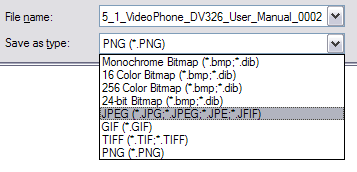
Go to ZamZar.com, browse for your file and choose PNG format for the format to conver to under Step 2. PNG is another newer picture format that is slowly replacing the JPG format. Most programs that can open JPG files can open PNG. Zamzar automatically converts each page in the PDF document into it’s own PNG picture file. Now you can simply open Microsoft Paint (yes, all you need it Paint!) and choose File – Save As from the menu and choose JPEG from the drop down list of formats.
microsoft paint
That’s it! By the way, if youare interested in how to extract the text from a PDF document or how to convert Word files to PDF, etc, check out the links.

Convert PDF to JPG Format – Second Way

The first thing you’ll need to do is download a free software (the only one I could find) that converts PDF documents to JPEG image format automatically. Go to the Omniformat download page and download both Omniformat v8.3 and the PDF995 app. You will need to download and install PDF995 first before installing Omniformat. Once you have both programs installed, go to your Start Menu programs, find the program group Software995 and click on Omniformat.
software995.jpg
The only annoying thing about this program is that it requires you to view some ads for about 30 seconds! However, it’s better than paying $20 or $40 for a program just to do a simple conversion! It does pop up another instance of your browser window for the web site of each of the sponsors, but it does not install any spyware onto your computer (no popup ads). Once the program is loaded, you’ll see it has a section called “Watch Folders” and then a button at the bottom titled “Start Monitoring” and “Single Pass“.
pdf-to-jpg.jpg
Basically the way it works is that you need to COPY the PDF files you want to convert to JPG format to the C:\omniformat\watch folder and then press Single Pass. The program will look in that directory and convert each page of each PDF into a separate JPG file. If you click Start Monitoring, you can keep dropping PDFs into that folder and the program will automatically convert them into JPGs as long as the program is open. Note that the program DELETES the original PDF document that it uses, so that’s why you need to COPY the PDF document to the watch folder, not move it! You should now see your converted files like below:
pdf-to-jpg-convert.jpg

Convert your PDF to a Word document

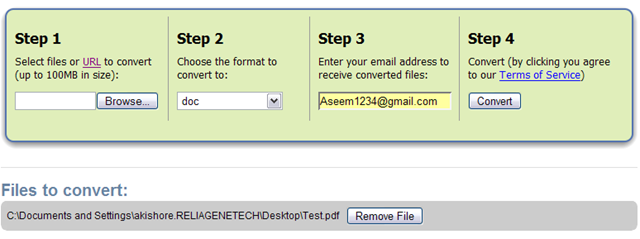
Go to Zamzar.com and click the Browse button next to Step 1 and choose your file. By default, Step 2 will be set to DOC format, but you can choose to convert your PDF to other file types such as TXT, HMTL, RTF, etc. Type in your email address for Step 3 and click Convert.
file conversion
You should receive an email within a few minutes with a download link to your converted file. I have tried out this service on some pretty complex PDF documents with text in multiple columns, multiple images, etc and have been very impressed with it’s conversion accuracy.

Convert a PDF file to Excel format

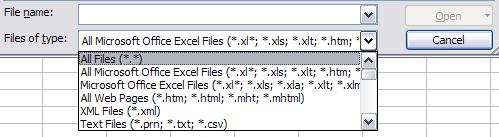
We will again follow the steps above using Zamzar, but this time choose TXT as the format you want to convert to. Unfortunately, you can’t convert straight to Excel format, so we’ll have to go through the intermediary TXT format. Once you have downloaded the TXT file and saved it on your computer, open Microsoft Excel and go to File – Open and change the Files of Type combo box to All Files.
convert pdf to excel
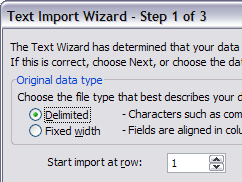
Now you should see the converted text file in the list of files. Choose it and click Open. You’ll now be brought to the Text Import Wizard. You have to open the file in this manner because if you simply right-click and say Open With Excel, all of the text for each row will appear in the first column and not be separated.
For Step 1, choose Delimited from the two options listed.
convert pdf to word
Click Next and check off the Space checkbox as one of the delimiters. Each value should now be separated by a vertical line, indicating it’s going to be in a separate column.
convert pdf to jpg
Click Next and then click Finish. You can now save the file as an Excel file by going to File – Save As. There are a few drawbacks, however, as this conversion does not always work perfectly! For example, if the original Excel sheet had a column where there was text with spaces included, each word will be separated into it’s own column! Also, you won’t see any formulas or functions that may have been in the original Excel sheet, only the text.
It’s as easy as that! You can use many other image editing programs also such as Photoshop, Corel, etc, etc, but I chose Paint because that is universally available on just about every Windows computer.

Sunday, 7 March 2010

Cisco DSL Router Configuration and Troubleshooting Guide - Step-by-Step Configuration of RFC1483 Routing with a Block of Static IP Addresses

Introduction


Your Internet Service Provider (ISP) has assigned a static public IP address to your Cisco Digital Subscriber Line (DSL) Router.


Prerequisites

Requirements

There are no specific requirements for this document.


Components Used

This document is not restricted to specific software and hardware versions.


Conventions

Refer to Cisco Technical Tips Conventions for more information on document conventions.


Configuration Procedures

Important: Before you begin, close all programs on the PC that might be monitoring your COM port. Devices such as PDAs and digital cameras often place programs in the system tray that render your COM port unusable for the configuration of your Cisco DSL Router.


Connect the Cisco DSL Router and Your PC

A console connection is made with a rolled cable and connects the console port of the Cisco DSL Router to a COM port on a PC. The console cable that is included with the Cisco DSL Router is a flat light blue cable. For more information on the pinouts of a rolled cable, or the pinouts of an RJ-45 to DB9 converter, refer to Cabling Guide for Console and AUX Ports.


Connect the RJ-45 connector on one end of a Cisco console cable to the console port of the Cisco DSL Router.


Connect the RJ-45 connector at the other end of the console cable to an RJ-45 to DB9 converter.


Connect the DB9 connector to an open COM port on your PC.


Start and Set Up HyperTerminal

Complete these steps:


Start the HyperTerminal program on the PC.


Set up your HyperTerminal session.


Assign a name to your session and click OK.


In the Connect To window, click Cancel.


Choose File > Properties.


From the Properties window, go to the Connect Using list and select the COM port where you connect the DB9 end of the console cable.


From the Properties window click Configure and fill in these values:


Bits per second: 9600


Data bits: 8


Parity: None


Stop bits: 1


Flow Control: None


Click OK.


From the Call menu, click Disconnect.


From the Call menu, click Call.


Press Enter until you see a router prompt on your HyperTerminal window.


Clear Existing Configurations on the Cisco DSL Router

Complete these steps:


Type enable at the router prompt in order to enter privileged mode.


Router>enable

Router#


!--- The # symbol indicates that you are in privileged mode.


Clear existing configurations on the router.


Router#write erase

Reload the router so that it boots with a blank startup configuration.


Router#reload

System configuration has been modified. Save? [yes/no]:no

Proceed with reload? [confirm]yes


!--- The router reload can take a few minutes.


After the router has reloaded, enter enable mode again.


Router>enable

Router#Configure the Cisco DSL Router

Complete these steps:


Configure service timestamp to properly log and display debug output in the troubleshooting section.


Router#configure terminal

Router(config)#service timestamps debug datetime msec

Router(config)#service timestamps log datetime msec

Router(config)#end

Disable the logging console on your Cisco DSL Router in order to suppress console messages that might be triggered while you configure the router.


Router#configure terminal

Router(config)#no logging console

Router(config)#end

Configure ip routing, ip subnet-zero, and ip classless in order to provide flexibility in routing configuration options.


Router#configure terminal

Router(config)#ip routing

Router(config)#ip subnet-zero

Router(config)#ip classless

Router(config)#end

Configure an IP address and subnet mask on the Cisco DSL Router Ethernet interface.


Router#configure terminal

Router(config)#interface ethernet 0

Router(config-if)#ip address

Router(config-if)#no shut

Router(config-if)#end

Configure the ATM interface of your Cisco DSL Router with the no shut command in order to bring up the interface.


Router#configure terminal

Router(config)#interface atm 0

Router(config-if)#no shut

Router(config-if)#end

Configure the ATM subinterface of your Cisco DSL Router with an ATM permanent virtual circuit (PVC), encapsulation type, and unnumbered Ethernet0 IP address.


Router#configure terminal

Router(config)#interface atm 0.1 point-to-point

Router(config-subif)#ip unnumbered ethernet0

Router(config-subif)#pvc

Router(config-subif-atm-vc)#encapsulation aal5snap

Router(config-subif-atm-vc)#end

Configure a default route using ATM0.1 as the outbound interface.


Router#configure terminal

Router(config)#ip route 0.0.0.0 0.0.0.0 atm0.1

Router(config)#end

For Dynamic Host Configuration Protocol (DHCP): (Optional) Configure the Cisco DSL Router as a DHCP server with a pool of IP addresses to assign to hosts connected to the Ethernet interface of the Cisco DSL Router. The DHCP server dynamically assigns an IP address, Domain Name Server (DNS), and the default gateway IP address to your hosts.


Router#configure terminal

Router(config)#ip dhcp excluded-address

Router(config)#ip dhcp pool

Router(dhcp-config)#network

Router(dhcp-config)#default-router

Router(dhcp-config)#dns-server


Router(dhcp-config)#end

Enable the logging console on the Cisco DSL Router, and write all the changes to memory.


Router#configure terminal

Router(config)#logging console

Router(config)#end

*Jan 1 00:00:00.100: %SYS-5-CONFIG_I: Configured from console by console

Router#write memory

Building configuration... [OK]

Router#Configuration

This is the configuration that is built after you have completed the procedures in the Configuration Procedures section of this document.


Cisco DSL Router with a Block of Static IP Addresses


!--- Comments contain explanations and additional information.


service timestamps debug datetime msec

service timestamps log datetime msec

ip subnet-zero

!


!--- For DHCP:


ip dhcp excluded-address

ip dhcp pool

network

default-router

dns-server

!

interface ethernet0

no shut

ip address

no ip directed-broadcast

!

interface atm0

no shut

no ip address

no ip directed-broadcast

no atm ilmi-keepalive

!

interface atm0.1 point-to-point

ip unnumbered ethernet0

pvc

encapsulation aal5snap


!--- Common PVC values supported by ISPs are 0/35 or 8/35.

!--- Confirm your PVC values with your ISP.


!

!

ip classless

ip route 0.0.0.0 0.0.0.0

ip route 255.255.255.255 atm0.1

!

end


Verify

Your Cisco DSL Router is now operational for Asymmetric Digital Subscriber Line (ADSL) service. You can issue a show run command in order to see the configuration.


Router#show run

Building configuration...The Output Interpreter Tool ( registered customers only) (OIT) supports certain show commands. Use the OIT to view an analysis of show command output.


Troubleshoot

Refer to Troubleshooting RFC1483 Routing if your ADSL service does not work properly

How To Create A Domain Server In Windows 2003

Step 1: Configure the computer's suffix
(Not mandatory, can be done via the Dcpromo process).

Right click My Computer and choose Properties.
Click the Computer Name tab, then Change.
Set the computer's NetBIOS name. In Windows Server 2003, this CAN be changed after the computer has been promoted to Domain Controller.
Click More.
In the Primary DNS suffix of this computer box enter the would-be domain name. Make sure you got it right. No spelling mistakes, no "oh, I thought I did it right...". Although the domain name CAN be changed after the computer has been promoted to Domain Controller, this is not a procedure that one should consider lightly, especially because on the possible consequences. Read more about it on my Windows 2003 Domain Rename Tool page.
Click Ok.
You'll get a warning window.
Click Ok.
Check your settings. See if they're correct.
Click Ok.
You'll get a warning window.
Click Ok to restart.


Step 2: Configuring the computer's TCP/IP settings
You must configure the would-be Domain Controller to use it's own IP address as the address of the DNS server, so it will point to itself when registering SRV records and when querying the DNS database.

Configure TCP/IP
Click Start, point to Settings and then click Control Panel.
Double-click Network and Dial-up Connections.
Right-click Local Area Connection, and then click Properties.

Click Internet Protocol (TCP/IP), and then click Properties.
Assign this server a static IP address, subnet mask, and gateway address. Enter the server's IP address in the Preferred DNS server box.Note: This is true if the server itself will also be it's own DNS server. If you have another operational Windows 2000/2003 server that is properly configured as your DNS server (read my Create a New DNS Server for AD page) - enter that server's IP address instead:


Click Advanced.
Click the DNS Tab.
Select "Append primary and connection specific DNS suffixes"
Check "Append parent suffixes of the primary DNS suffix"
Check "Register this connection's addresses in DNS". If this Windows 2000/2003-based DNS server is on an intranet, it should only point to its own IP address for DNS; do not enter IP addresses for other DNS servers here. If this server needs to resolve names on the Internet, it should have a forwarder configured.
Click OK to close the Advanced TCP/IP Settings properties.
Click OK to accept the changes to your TCP/IP configuration.
Click OK to close the Local Area Connections properties.


Step 3: Configure the DNS Zone
(Not mandatory, can be done via the Dcpromo process).

This article assumes that you already have the DNS service installed. If this is not the case, please read Create a New DNS Server for AD.

Furthermore, it is assumed that the DC will also be it's own DNS server. If that is not the case, you MUST configure another Windows 2000/2003 server as the DNS server, and if you try to run DCPROMO without doing so, you'll end up with errors and the process will fail.


Also see » What's New in Group Policy?


Creating a Standard Primary Forward Lookup Zone
Click Start, point to All Programs, point to Administrative Tools, and then click DNS Manager. You see two zones under your computer name: Forward Lookup Zone and Reverse Lookup Zone.
Right click Forward Lookup Zones and choose to add a new zone.
Click Next. The new forward lookup zone must be a primary zone so that it can accept dynamic updates. Click Primary, and then click Next.
The name of the zone must be the same as the name of the Active Directory domain, or be a logical DNS container for that name. For example, if the Active Directory domain is named "lab.dpetri.net", legal zone names are "lab.dpetri.net", "dpetri.net", or "net". Type the name of the zone, and then click Next.
Accept the default name for the new zone file. Click Next.
To be able to accept dynamic updates to this new zone, click "Allow both nonsecure and secure dynamic updates". Click Next.
Click Finish.


You should now make sure your computer can register itself in the new zone. Go to the Command Prompt (CMD) and run "ipconfig /registerdns" (no quotes, duh...). Go back to the DNS console, open the new zone and refresh it (F5). Notice that the computer should by now be listed as an A Record in the right pane.

If it's not there try to reboot (although if it's not there a reboot won't do much good). Check the spelling on your zone and compare it to the suffix you created in step 1. Check your IP settings.

Enable DNS Forwarding for Internet connections (Not mandatory)
Start the DNS Management Console.
Right click the DNS Server object for your server in the left pane of the console, and click Properties.
Click the Forwarders tab.
In the IP address box enter the IP address of the DNS servers you want to forward queries to - typically the DNS server of your ISP. You can also move them up or down. The one that is highest in the list gets the first try, and if it does not respond within a given time limit - the query will be forwarded to the next server in the list.
Click OK.


Creating a Standard Primary Reverse Lookup Zone
You can (but you don't have to) also create a reverse lookup zone on your DNS server. The zone's name will be the same as your TCP/IP Network ID. For example, if your IP address is 192.168.0.200, then the zone's name will be 192.168.0 (DNS will append a long name to it, don't worry about it). You should also configure the new zone to accept dynamic updates. I guess you can do it on your own by now, can't you?


Step 4: Running DCPROMO
After completing all the previous steps (remember you didn't have to do them) and after double checking your requirements you should now run Dcpromo.exe from the Run command.

Click Start, point to Run and type "dcpromo".
The wizard windows will appear. Click Next.

In the Operating System Compatibility windows read the requirements for the domain's clients and if you like what you see - press Next.
Choose Domain Controller for a new domain and click Next.
Choose Create a new Domain in a new forest and click Next.
Enter the full DNS name of the new domain, for example - kuku.co.il - this must be the same as the DNS zone you've created in step 3, and the same as the computer name suffix you've created in step 1. Click Next. This step might take some time because the computer is searching for the DNS server and checking to see if any naming conflicts exist.
Accept the the down-level NetBIOS domain name, in this case it's KUKU. Click Next
Accept the Database and Log file location dialog box (unless you want to change them of course). The location of the files is by default %systemroot%\NTDS, and you should not change it unless you have performance issues in mind. Click Next.
Accept the Sysvol folder location dialog box (unless you want to change it of course). The location of the files is by default %systemroot%SYSVOL, and you should not change it unless you have performance issues in mind. This folder must be on an NTFS v5.0 partition. This folder will hold all the GPO and scripts you'll create, and will be replicated to all other Domain Controllers. Click Next.
If your DNS server, zone and/or computer name suffix were not configured correctly you will get the following warning:This means the Dcpromo wizard could not contact the DNS server, or it did contact it but could not find a zone with the name of the future domain. You should check your settings. Go back to steps 1, 2 and 3. Click Ok.You have an option to let Dcpromo do the configuration for you. If you want, Dcpromo can install the DNS service, create the appropriate zone, configure it to accept dynamic updates, and configure the TCP/IP settings for the DNS server IP address.To let Dcpromo do the work for you, select "Install and configure the DNS server...".
Click Next.

Otherwise, you can accept the default choice and then quit Dcpromo and check steps 1-3.


If your DNS settings were right, you'll get a confirmation window. Just click Next.
Accept the Permissions compatible only with Windows 2000 or Windows Server 2003 settings, unless you have legacy apps running on Pre-W2K servers.
Enter the Restore Mode administrator's password. In Windows Server 2003 this password can be later changed via NTDSUTIL. Click Next.
Review your settings and if you like what you see - Click Next.
See the wizard going through the various stages of installing AD. Whatever you do - NEVER click Cancel!!! You'll wreck your computer if you do. If you see you made a mistake and want to undo it, you'd better let the wizard finish and then run it again to undo the AD.

If all went well you'll see the final confirmation window. Click Finish.
You must reboot in order for the AD to function properly.
Click Restart now.


Step 5: Checking the AD installation
You should now check to see if the AD installation went well.

First, see that the Administrative Tools folder has all the AD management tools installed.
Run Active Directory Users and Computers (or type "dsa.msc" from the Run command). See that all OUs and Containers are there.
Run Active Directory Sites and Services. See that you have a site named Default-First-Site-Name, and that in it your server is listed.
If they don't (like in the following screenshot), your AD functions will be broken (a good sign of that is the long time it took you to log on. The "Preparing Network Connections" windows will sit on the screen for many moments, and even when you do log on many AD operations will give you errors when trying to perform them). = BadThis might happen if you did not manually configure your DNS server and let the DCPROMO process do it for you.
Another reason for the lack of SRV records (and of all other records for that matter) is the fact that you DID configure the DNS server manually, but you made a mistake, either with the computer suffix name or with the IP address of the DNS server (see steps 1 through 3).

Open the DNS console. See that you have a zone with the same name as your AD domain (the one you've just created, remember? Duh...). See that within it you have the 4 SRV record folders. They must exist.
= Good

To try and fix the problems first see if the zone is configured to accept dynamic updates.

Right-click the zone you created, and then click Properties.
On the General tab, under Dynamic Update, click to select "Nonsecure and secure" from the drop-down list, and then click OK to accept the change.You should now restart the NETLOGON service to force the SRV registration.You can do it from the Services console in Administrative tools:


Or from the command prompt type "net stop netlogon", and after it finishes, type "net start netlogon".

Let it finish, go back to the DNS console, click your zone and refresh it (F5). If all is ok you'll now see the 4 SRV record folders.

If the 4 SRV records are still not present double check the spelling of the zone in the DNS server. It should be exactly the same as the AD Domain name. Also check the computer's suffix (see step 1). You won't be able to change the computer's suffix after the AD is installed, but if you have a spelling mistake you'd be better off by removing the AD now, before you have any users, groups and other objects in place, and then after repairing the mistake - re-running DCPROMO.


Check the NTDS folder for the presence of the required files.
Check the SYSVOL folder for the presence of the required subfolders.
Check to see if you have the SYSVOL and NETLOGON shares, and their location.


If all of the above is ok, I think it's safe to say that your AD is properly installed.